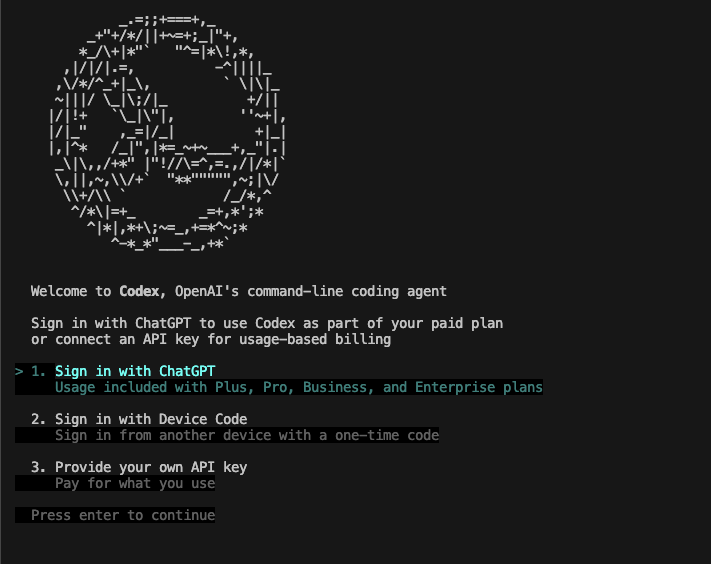
Your highlighted option is:
1. Sign in with ChatGPT
Option 1: Sign in with ChatGPT
This is the best choice for most users.
When you select it, Codex opens a browser login page. You sign in using your normal ChatGPT account. After login, the browser sends an access token back to the Codex CLI. OpenAI says Codex CLI supports ChatGPT login and that Codex access is included with ChatGPT plans such as Plus, Pro, Business, Edu, and Enterprise. (OpenAI Developers)
Use this if:
| Situation | Should you use it? |
|---|---|
| You have ChatGPT Plus / Pro | Yes |
| You have company ChatGPT Business / Enterprise | Yes |
| You want usage included with your ChatGPT plan | Yes |
| You are using Codex from your own laptop/desktop terminal | Yes |
Typical flow:
codex
Then choose:
1. Sign in with ChatGPT
Browser opens → login → allow access → return to terminal.
Option 2: Sign in with Device Code
This is useful when the machine running Codex cannot easily open a browser.
Example situations:
| Situation | Why device code helps |
|---|---|
| SSH server | Browser is not available on server |
| Remote Linux VM | You log in from your local browser instead |
| Headless machine | No desktop GUI |
| Cloud dev box | Browser login may not work directly |
The CLI shows a one-time code. You open the login page on another device, enter the code, sign in, and Codex becomes authenticated on the terminal machine. OpenAI specifically mentions device-code authentication for Codex CLI in non-interactive environments such as remote development boxes, and notes that enterprise admins may need to enable it. (OpenAI Developers)
Use this if:
| Situation | Should you use it? |
|---|---|
| You are on local Mac/Windows/Linux with browser | Usually no |
| You are using SSH to a remote machine | Yes |
| Browser does not open from terminal | Yes |
| Company blocks normal browser login from CLI | Try this, or ask admin |
Option 3: Provide your own API key
This uses an OpenAI Platform API key instead of your ChatGPT subscription login.
That means usage is billed through your OpenAI Platform account, usually pay-as-you-go. OpenAI says API-key login is available, but features that rely on ChatGPT credits, such as fast mode, are available only when signing in with ChatGPT. OpenAI also recommends API-key authentication for programmatic workflows such as CI/CD jobs. (OpenAI Developers)
Use this if:
| Situation | Should you use it? |
|---|---|
| You want billing through OpenAI API credits | Yes |
| You are running Codex in scripts/automation | Yes |
| You are using CI/CD | Usually yes |
| You want usage included in ChatGPT Plus/Pro/Enterprise | No, use ChatGPT login |
| You do not have ChatGPT paid/team access | Maybe, if you have API billing |
Typical API-key style:
codex login
Then choose:
3. Provide your own API key
Paste your API key when asked.
Which option should you choose?
For your normal laptop or desktop:
1. Sign in with ChatGPT
For SSH server, Linux VM, or remote machine:
2. Sign in with Device Code
For automation, CI/CD, scripts, or API billing:
3. Provide your own API key
Useful Codex login commands
Check login status:
codex login status
Login again:
codex login
Logout:
codex logout
OpenAI’s CLI reference says codex login authenticates using ChatGPT OAuth, device authentication, or an API key, and codex logout removes stored credentials. (OpenAI Developers)
Important security note
After login, Codex caches credentials locally so you do not need to sign in every time. OpenAI says these credentials may be stored in ~/.codex/auth.json or your operating system credential store. Treat this like a password: do not commit it to GitHub, paste it into chat, or share it with others. (OpenAI Developers)